Create Public Linux EC2
- Access the EC2 service management console
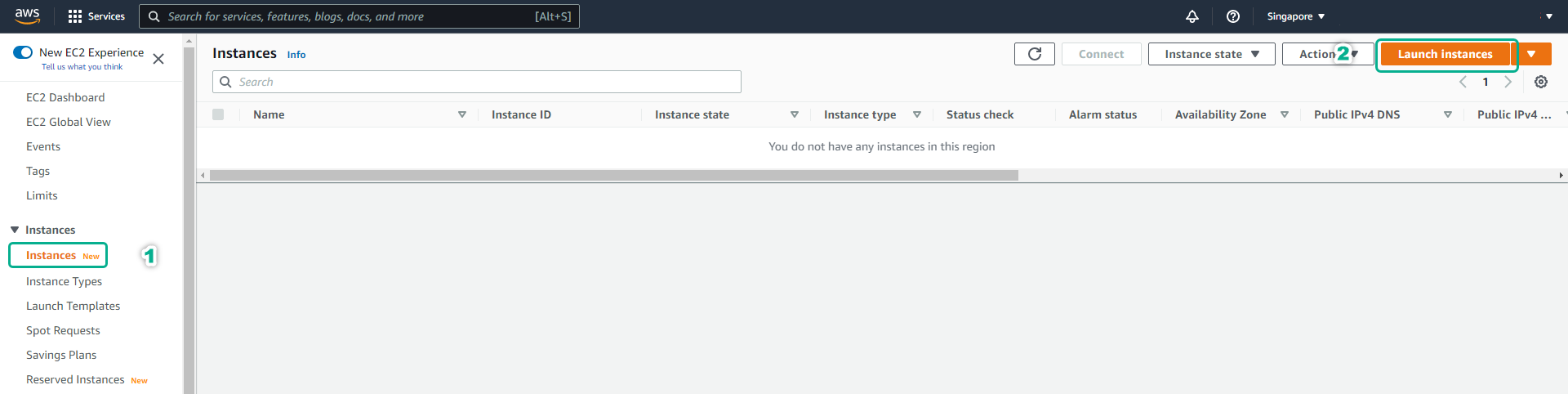
- Click Instances.
- Click Launch instances.
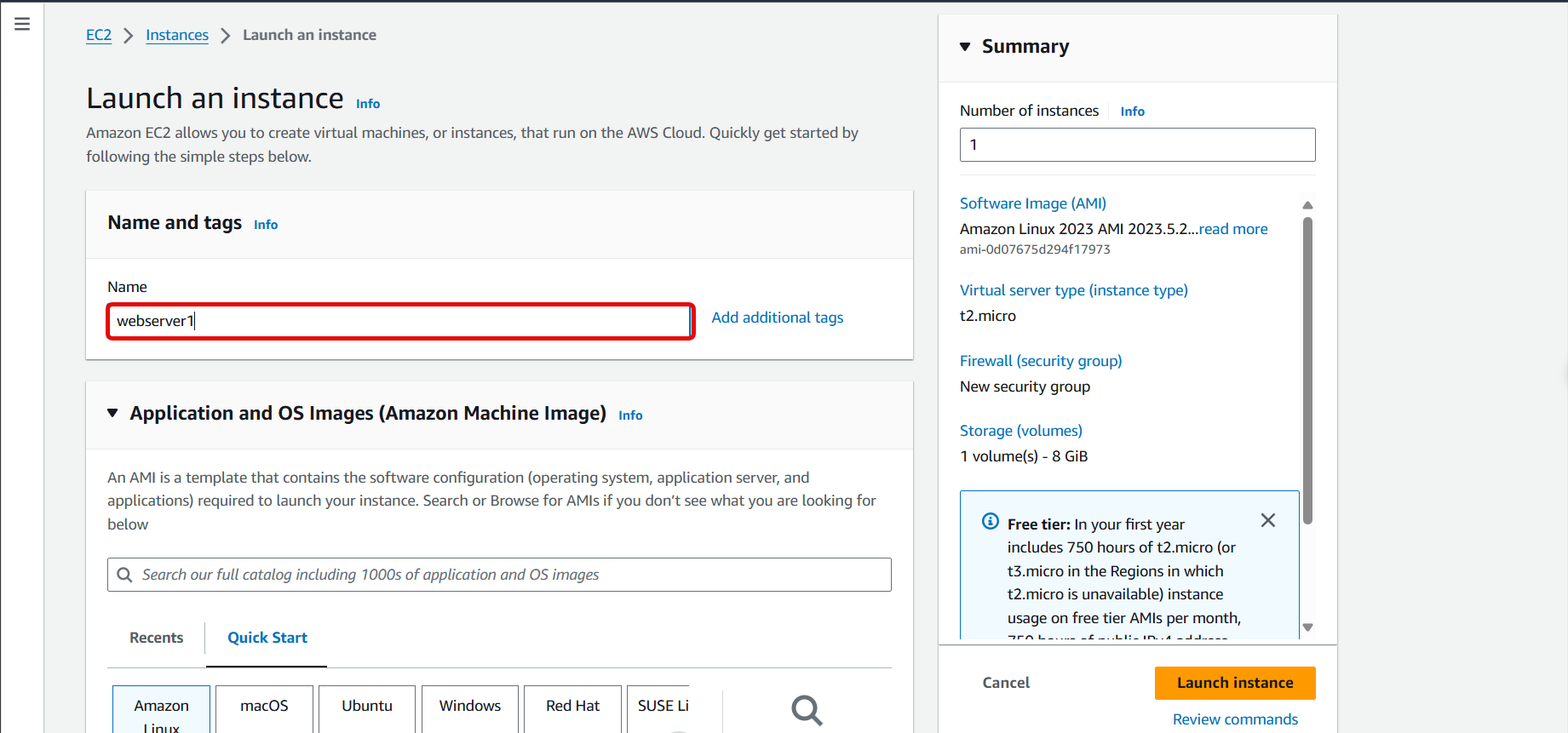
- Name the instance
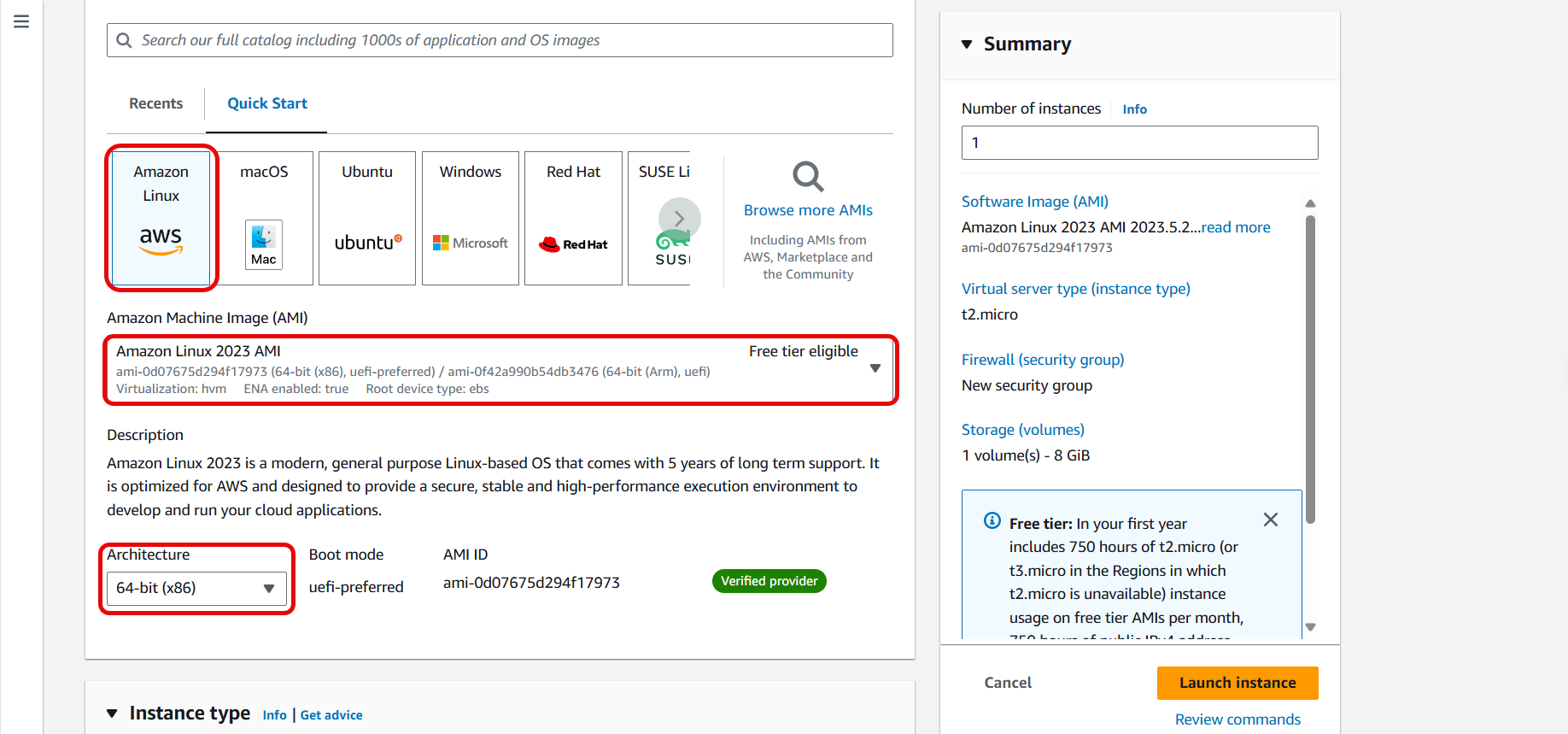
- On the Choose an Instance Type page.
- Click to select an appropriate AMI.
- Click to select an appropriate configuration.
- On the Configure Instance Details page
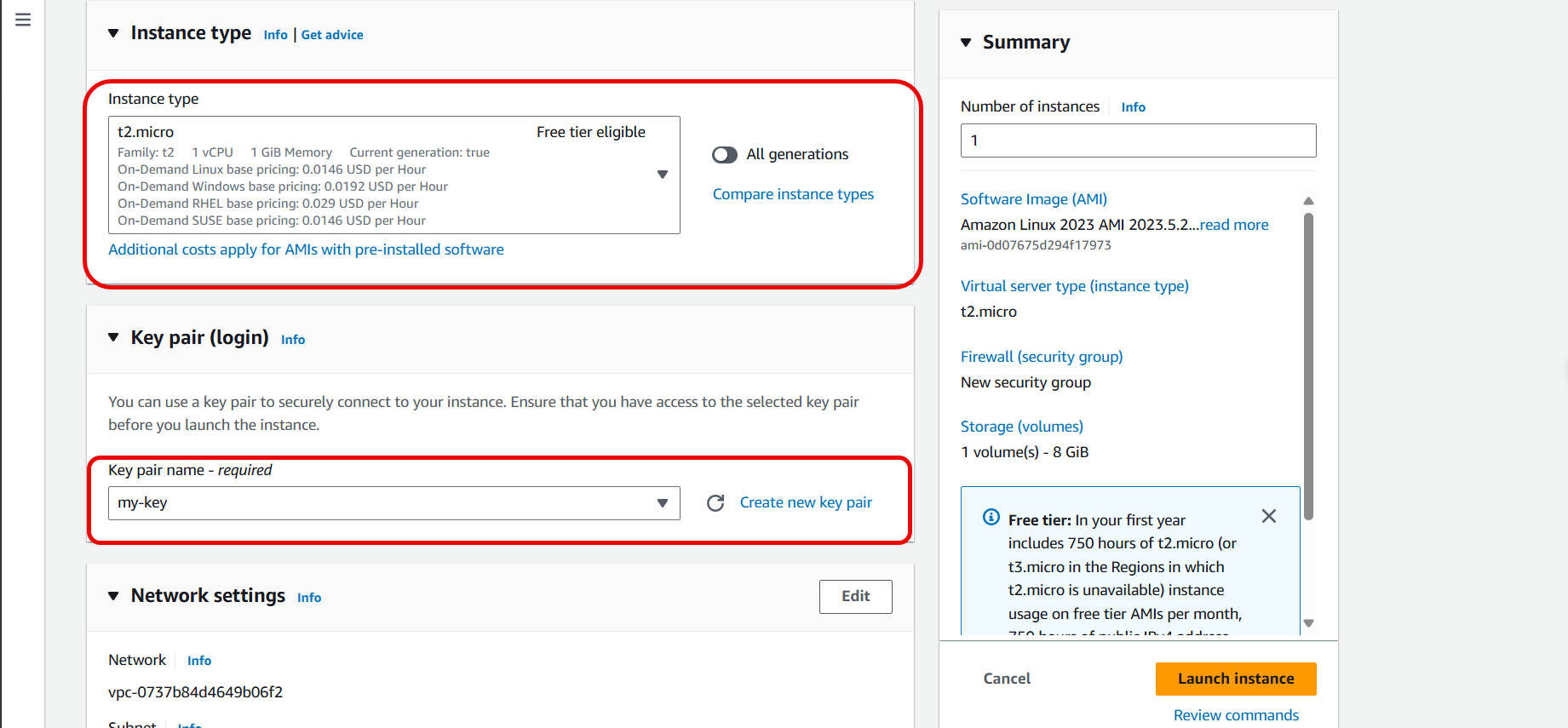
- For Instance Type, select t2.micro.
- For Key pair name, select an existing key pair or create a new one.
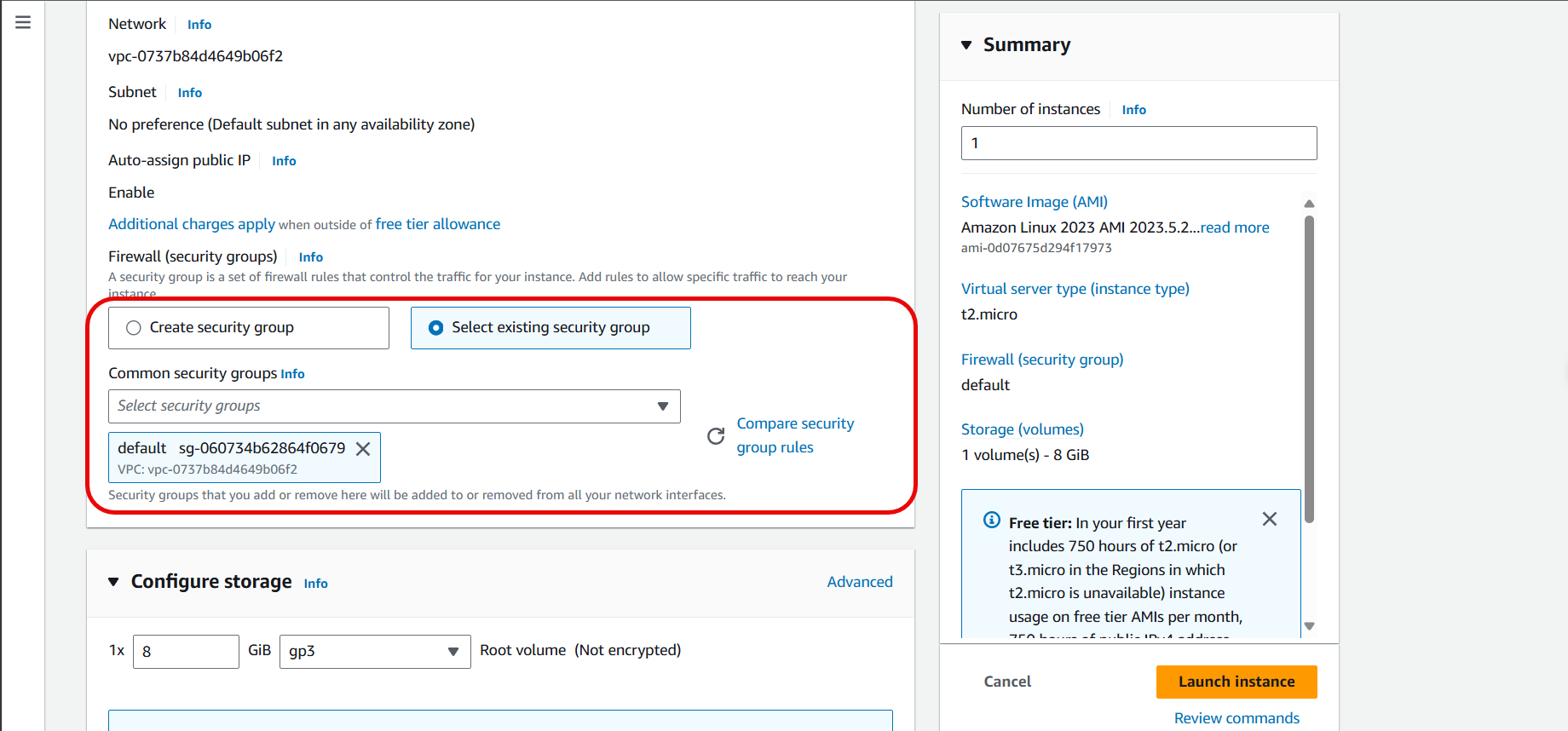
- Select Configure Security Group.
- Under Network, choose the Security Group created in 2.1.2.
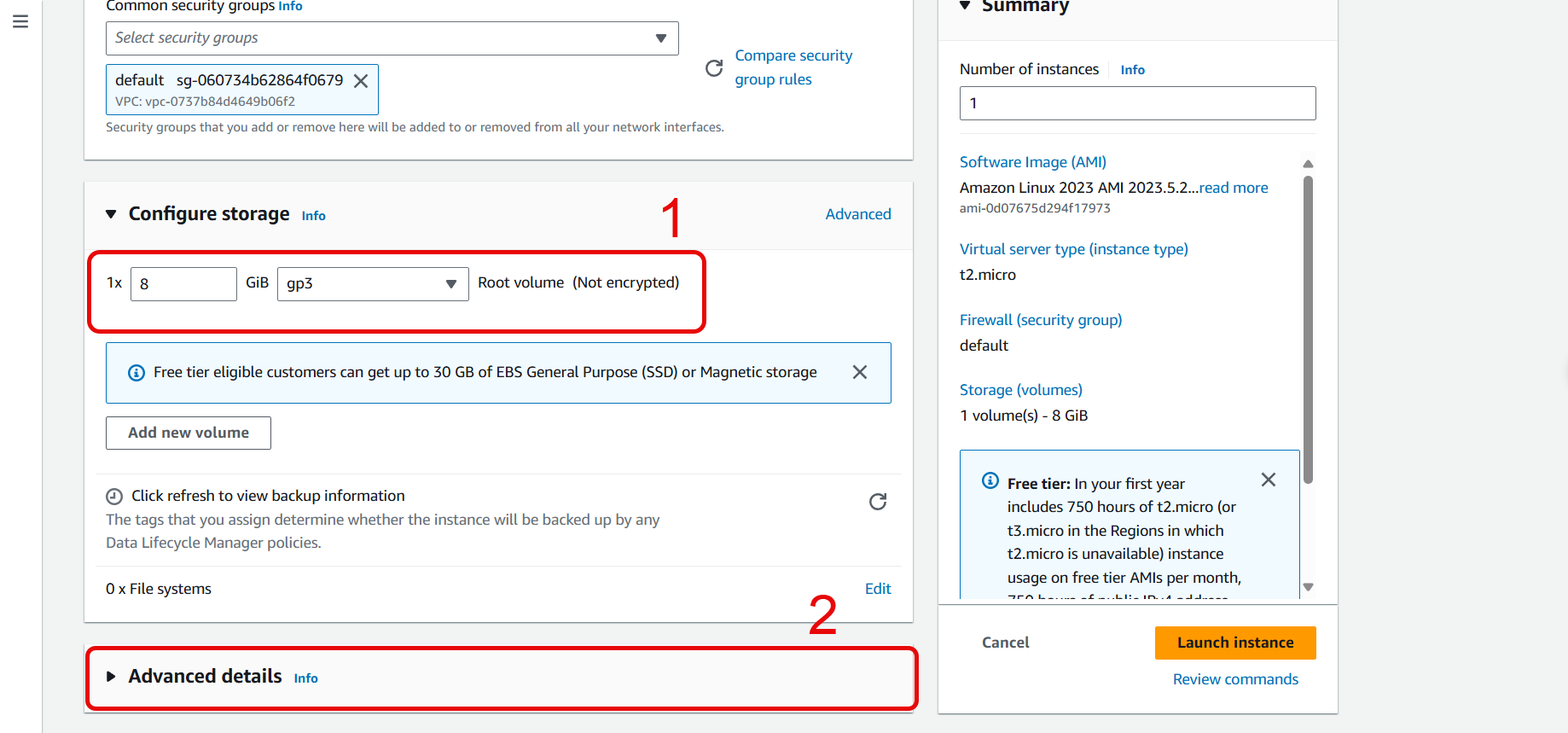
- On the Configure Storage page.
- You can increase or decrease the instance’s disk capacity as needed.
- Click on Advanced details to expand.
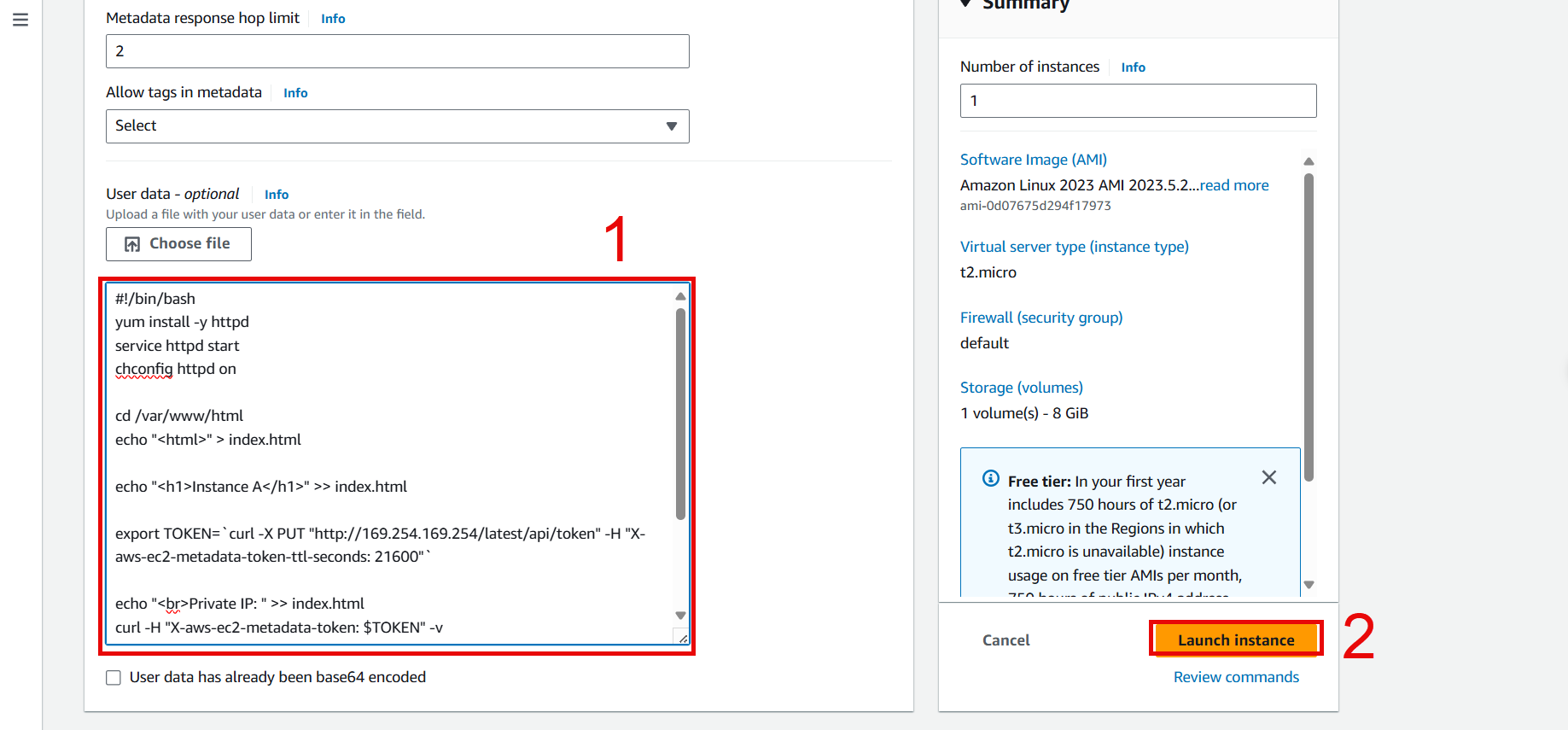
- In User data
- In the User data section, enter the following script:
#!/bin/bash
yum install -y httpd
service httpd start
chconfig httpd on

cd /var/www/html
echo "<html>" > index.html

echo "<h1>Instance A</h1>" >> index.html


export TOKEN=`curl -X PUT "http://169.254.169.254/latest/api/token" -H "X-aws-ec2-metadata-token-ttl-seconds: 21600"`

echo "<br>Private IP: " >> index.html
curl -H "X-aws-ec2-metadata-token: $TOKEN" -v http://169.254.169.254/latest/meta-data/local-ipv4 >> index.html

echo "<br>Public IP: " >> index.html
curl -H "X-aws-ec2-metadata-token: $TOKEN" -v http://169.254.169.254/latest/meta-data/public-ipv4 >> index.html
echo "</html>" >> index.html
- Create an additional instance server2 similar to the above.